Western Mass Emergency Ultrasound

Entering patient information into the machine

Enter the patient's first and last names
Enter the MR number in the ID field
Enter the date of birth
Enter your Ultralinq username in the "Reading Dr." field
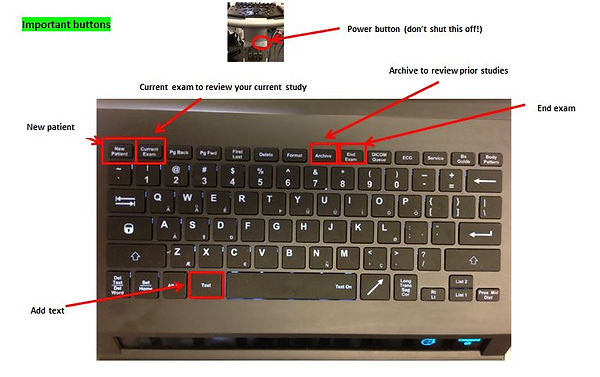
To start a new exam, hit the "Patient" button, then "New/End"
GE
1) Start a new patient exam
- Hit the “Patient” button
- Enter MR, Patient Name, DOB, and ultralinq username
*** Date format must be MM/DD/YYYY
- Select “Exit” at bottom left of patient information screen
2) Choose the appropriate probe and exam settings
You can do this 2 ways.
A) The best way to get the appropriate exam setting, is to press the “Exam” button. This will bring up a tabbed screen with the exam options. First choose the “Transducer” (Linear, Curvilinear, or phased array) then choose the appropriate “Application” (Abdominal, Cardiac, OB), then choose the specific “Preset” (Adult, Adult Pen (for obese patients), etc.).
B) The other way is to press one of the preset keyboard buttons labeled “Vasc”, “Abd”, and “Card” located at the top of keyboard. This will select the identified transducer and will automatically choose the Application and Preset that the probe default is set to. For example, the default settings for the “Card” keyboard button is the cardiac probe, cardiac application, and adult general preset. This is a quick way to choose a probe, but keep in mind that for your specific question, it may be better to use option one to get the ideal settings. For example, if you use the cardiac probe to perform a FAST on a child, you need to use option A in order to get the FAST setup because option B automatically defaults to the cardiac setup.
3) To review images and clips from the current exam:
- Hit the button labeled “cursor” (to the left of the tracking ball)
- Use the cursor to select the images you want from the row of thumbnails at the bottom of the screen
4) To review images from a prior exam that has already been ended
- Hit the “Patient” button (left side of the keyboard platform) to pull up the list of exams
- Move the cursor over the exam you want, and hit the “Enter” button twice (to the right of the tracking ball)
This will pull up a list of the exams for the patient
- Choose the exam you want to review by using the cursor and hitting the “Enter” button twice
5) To end the exam, hit the keyboard button “EndExam” (top row, middle), or hit the “Patient” button
****Images will not be sent to Ultralinq until the exam has been ended!
6) To swap probes (for endocavitary exams):
*****FREEZE THE SCREEN FIRST!!!!
Move the tab next to the probe plug that you want to remove into the unlocked position and remove it.
Insert the endocavitary plug into the slot and flip the tab into the locked position.
Important Buttons:
1) Hitting the button labeled “Home” will get you out of whatever submenus, etc you are stuck in. So if you can’t figure out how to back out from where you are (e.g. doppler, measurements, zoom, etc), just hit the “Home” button
2) Gain button: same as for sonosite and Zonare
3) Time-Gain-Compensation: changes the gain (brightness) of different parts of the screen. Set up is the same as the Zonare. Ideal placement is for all 6 sliders to be lined up so that they go diagonally from top left to bottom right
4) Depth: turn the labeled dial to adjust depth
5) To save clips and images, hit the “Clip” or “Image” buttons
6) Vascular probe buttons (super cool!!)
a. The 2 buttons on the narrow edge of the vascular probe control depth (top button = increases depth, bottom button = decreases depth)
b. The 2 buttons on the wide edge of the vascular probe freeze the picture (bottom button) and save the picture (top button)
7) Needle button: Changes settings so you can see the needle better. Keep hitting the needle button until the line on the screen is oriented perpendicular to your needle


Zonare